TL;DR
- When installing Mad God Overhaul, I found it had game and mod compatibility issues.
- To fix it, I removed 3 problematic mods, created 3 merge patches to fix conflicts, added Far Distance LOD (Level of Detail), and added a few mods from GingasVR’s list to enhance graphics and gameplay.
- The result is 95% vanilla gameplay at any difficulty level, improved interface, no conflict issues, full LODs, and working Sim Settlements 2!
- I use it as a baseline working list for swapping graphics mods for personal taste, and to set up survival just as I like it without forced imbalance.
- Below are the steps I took to customize the list, similar to my previous GingasVR Essentials Overhaul Customization Guide.
- For comments and questions, please see my Reddit post.
- Maybe now I can finally play the damn game 😀
Disclaimer: Large modlists are hard; it is possible there are more conflicts/bugs I haven’t found/solved yet, especially with regard to Sim Settlements 2. I will update the patches as I play. Suggestions and fixes are very welcome.
Table of Contents
- Foreword
- Solution General Approach
- General Game Tweaks
- Remove Mods
- Install Unofficial Mad God Overhaul Patch Mod
- Install Optional Recommended Mods
- Install Far Object LOD Mods
- Load Order
- Final Words
Foreword
Unlike GingasVR’s Essentials Overhaul, which mainly required customization for personal preference (as I covered in my previous guide), Mad God Overhaul contains conflicting mods with no merge or conflict resolution patches to fix them.
There are three main problem areas:
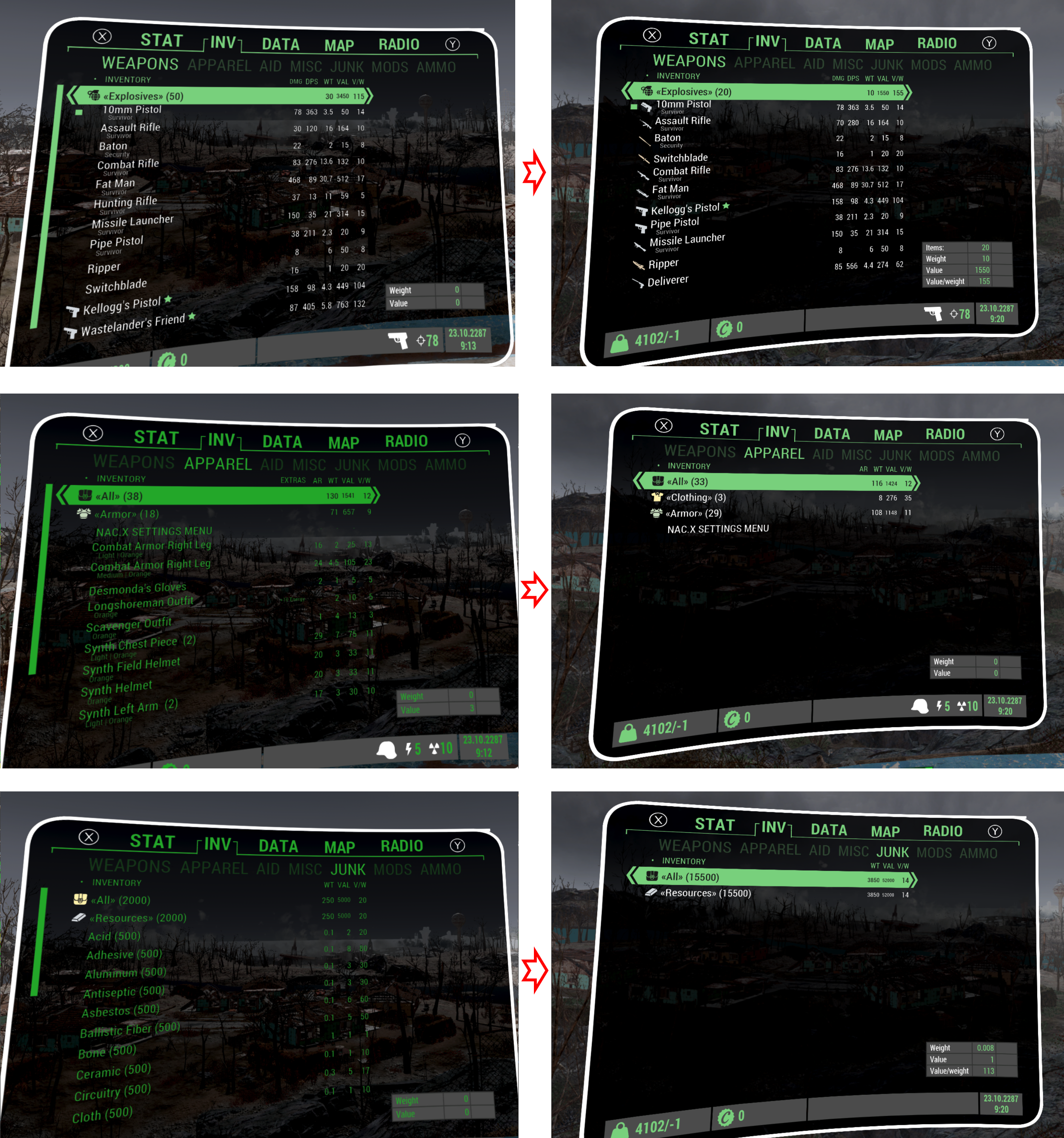
- FallUI is partially broken due to other mods overwriting its naming and tagging (see screenshot below).
- Armament – Ammunition and Ballistics Overhaul disrupts weapon damage balance.
- Sim Settlements 2 (SS2) has broken location data and lacks FallUI integration.
Note: I’m only covering the “Mad God Overhaul Classic” profile. I won’t address the “Modern” profile, as its FPS-focused setup isn’t relevant to my Fallout play style.
Example: Broken FallUI
FallUI is a clear example of a mod broken by load-order conflicts. Mods like Equipment and Crafting Overhaul and Meliora – Clothing Redistribution overwrite many of its records, breaking tagging and icon grouping for weapons, armor, components, and other items.
Fresh install (left) vs. fixed conflicts (right) — note restored icons and grouping:
Solution General Approach
- Settings and INI suggestions to make your game better from the start.
- Remove mods with major conflicts and/or that disrupt Fallout’s gameplay balance.
- Create merge/conflict patches so mods complement instead of overwriting each other, including bug fixes I found along the way.
- Add Far Objects Level of Detail (LOD).
Steps Overview
A quick summary of the steps without explaining why and only mentioning the must-remove and must-have mods.
- Apply General Game Tweaks.
- Remove mods:
- Install mods:
- Install “Unofficial Mad God Overhaul Patch”
- Install Far Object LOD Improvement Project
- Install “Unofficial Mad God Overhaul LOD”
- Update Load Order.
- Play.
General Game Tweaks
Before modifying the modlist, I recommend a few settings and INI changes to improve the VR experience.
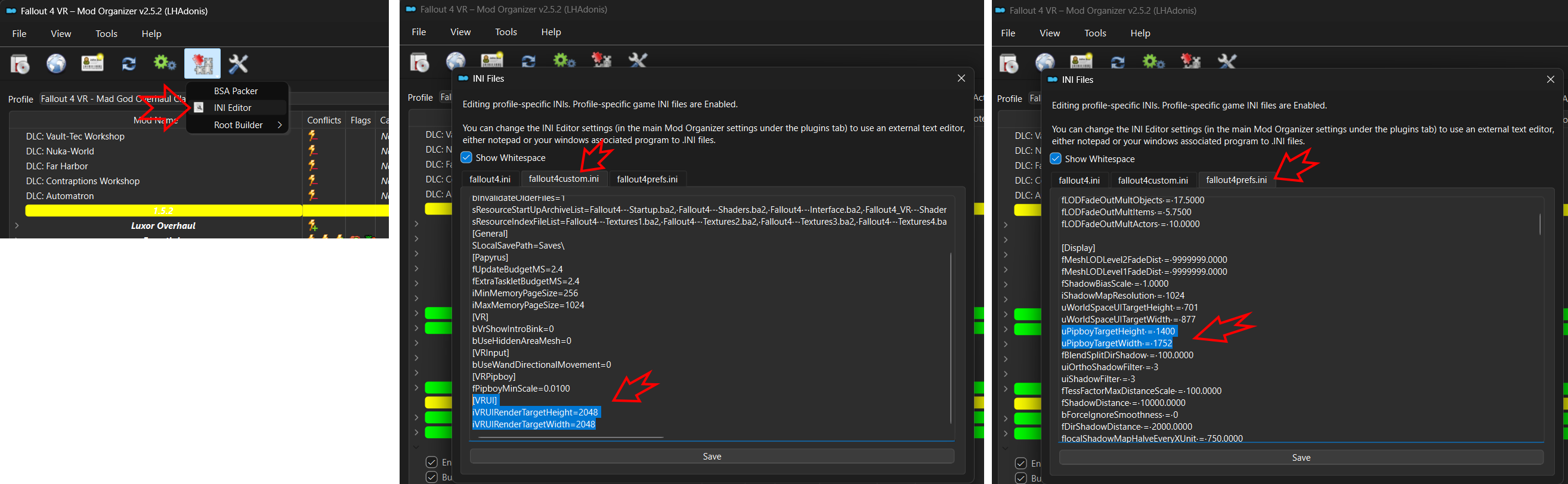
1. Increase UI Render Resolution
fallout4custom.ini — improves UI text clarity (menus, notifications, dialogues):
[VRUI]
iVRUIRenderTargetHeight=2048
iVRUIRenderTargetWidth=2048
Example:

fallout4prefs.ini — improves PipBoy clarity:
[Display]
uPipboyTargetHeight=1400
uPipboyTargetWidth=1752
Use MO2’s INI editor for quick changes:
2. Dual-Color PipBoy
Regardless of PipBoy mode (wrist, in-front, projected), I find white text with light green accents far more readable.
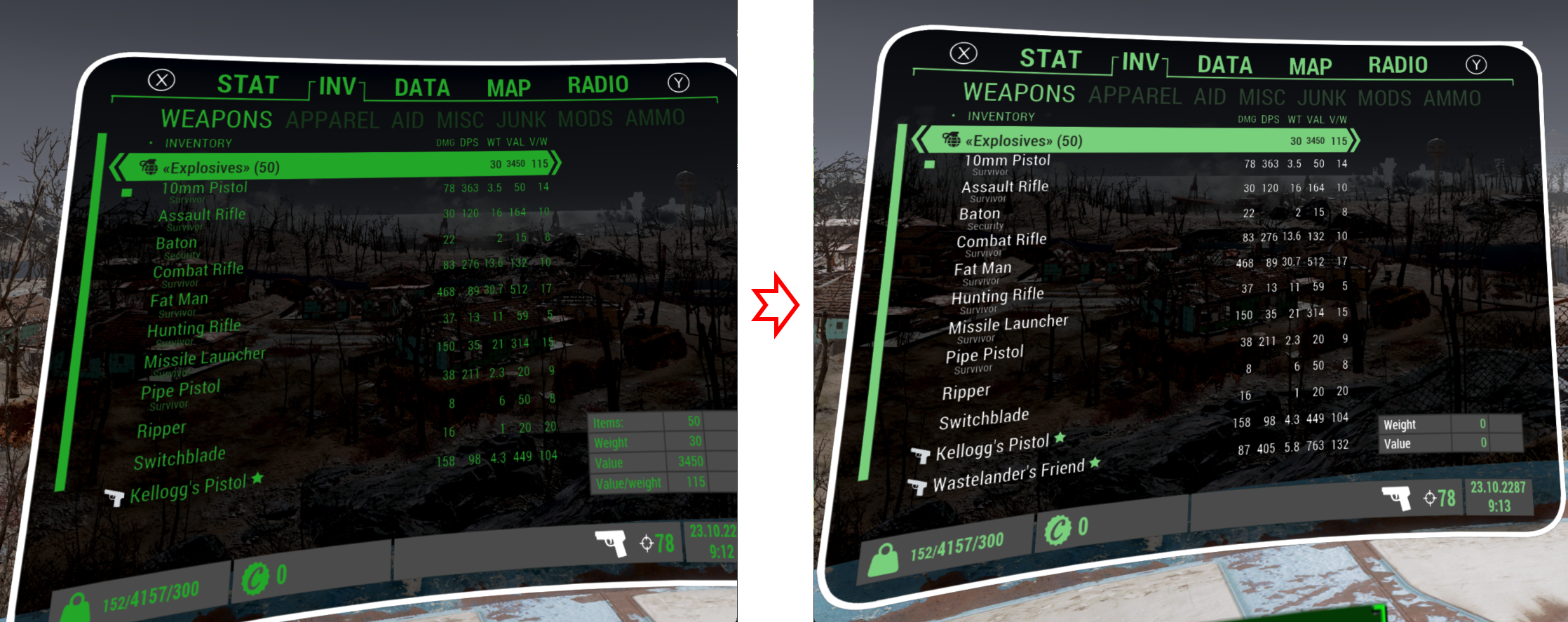
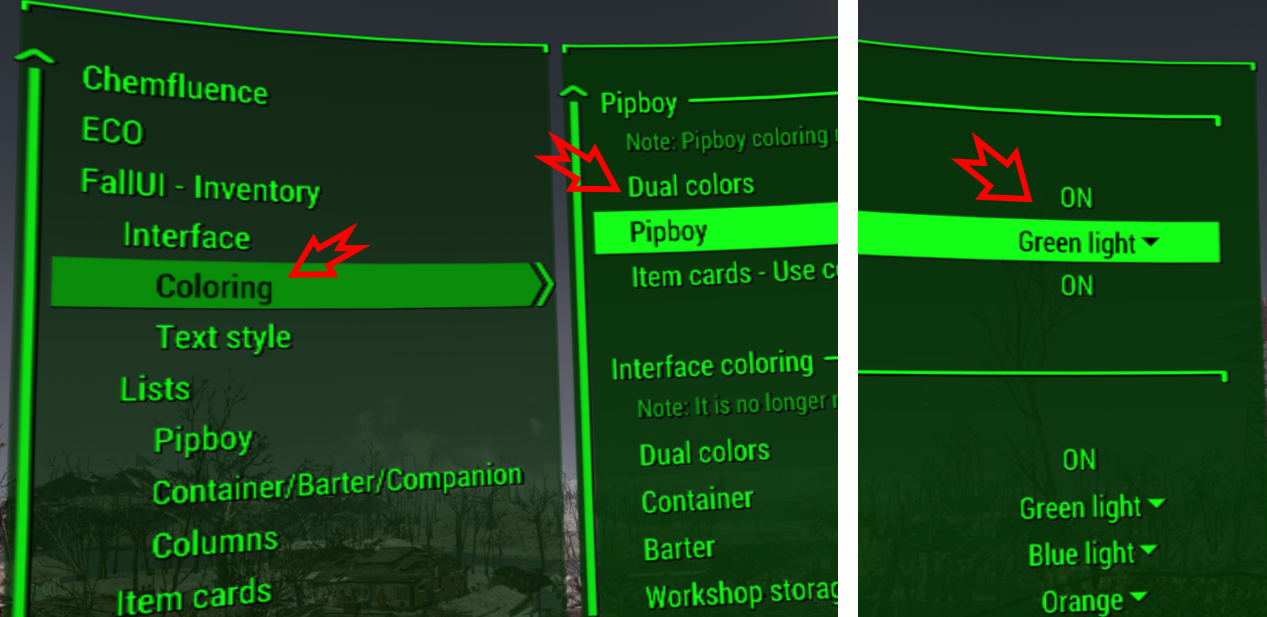
Enable in MCM → FallUI – Inventory → Interface → Coloring, toggle Dual Color, set PipBoy color to Green light.
3. Smaller Interact/Loot Interface
See my previous guide’s INI section.
Remove Mods
Technically, it is possible to patch all conflicts to include these 3 mods, but in my view, they break combat balance and aren’t worth the patching effort. If you want to keep them, you will have to do the hard work of resolving their conflicts.
- Armament – Ammunition and Ballistics Overhaul
Although it’s in the “Minor Texture” section of the modlist, it significantly changes weapon damage by setting extremely high damage values directly on the ammunition, resulting in very easy gun kills and removing the effects of weapon and perk stats from the game. However, this doesn’t apply to all ammunition because Burst Impact Blast FX overrides some records, making those rounds almost useless. Additionally, it greatly increases some ammo loot chances, leading to me ending up with over 500 rounds after the Concord battle.Therefore, I decided to completely remove the mod and replace the ammo textures with Ammo Retexture (FUBAR weathered version), which has no damage side effects. - VR Weapon Overhaul
The mod changes most—but not all—weapon scopes to “see-through,” which are much inferior to the vanilla scopes. For details, see Mods to Remove: See-Through Scopes in my previous guide. It also includes VR weapon position fixes that are no longer needed with FRIK, which end up breaking proper weapon-in-hand positioning. Without it, all vanilla weapons will be correctly aligned without you needing to do anything. - Equipment and Crafting Overhaul
This mod makes changes to a lot of game items, requiring significant effort to resolve its conflicts with the Meliora and FallUI mods. I personally didn’t want to invest that time, especially in a mod that doesn’t seem very balanced. - Pipboy Light Change to Headlamp
Redundant, as FRIK includes the exact same feature with additional functionality.
Better yet, use my Immersive Flashlight VR mod.
Install Unofficial Mad God Overhaul Patch Mod
All the patches described below are available in my “Unofficial Mad God Overhaul Patch”. The simplest way to fix the modlist is, after removing the mods above, to install this patch and place the three plugins at the end of the load order in the order I describe here. I split the fixes into three patches to simplify the process, make it easier to debug, and allow customization.
To learn how to use xEdit, I recommend watching these:
- kinggath: Bethesda Mod School: XEdit 101 (FO4Edit) – Basic Weapon Adjustments
- GingasVR: HOW to check for and fix conflicts with MODS for SKYRIMVR, FALLOUTVR, NEW VEGAS, FLAT SKYRIM, etc.
“Unofficial Mad God – Merge Patch.esp”
This is a general merged patch initially created using xEdit’s “Create Merged Patch” feature, followed by manually resolving conflicts between Unofficial Fallout 4 Patch, Ambient Wasteland, Realistic Reverb, and Bladed Weapons Redux for VR.
Additionally, because Burst Impact Blast FX includes unbalanced projectile ballistic changes to ammunition, I adjusted it using Weapons of Fate as inspiration to bring it into a more realistic range while keeping the burst impact visuals.

“Unofficial Mad God – FallUI M8r Tags Patch.esp”
Merges FallUI item name tagging that was overwritten by Burst Impact Blast FX, Meliora – Clothing Redistribution, and Components Redone.

“Unofficial Mad God – SS2 Patch.esp”
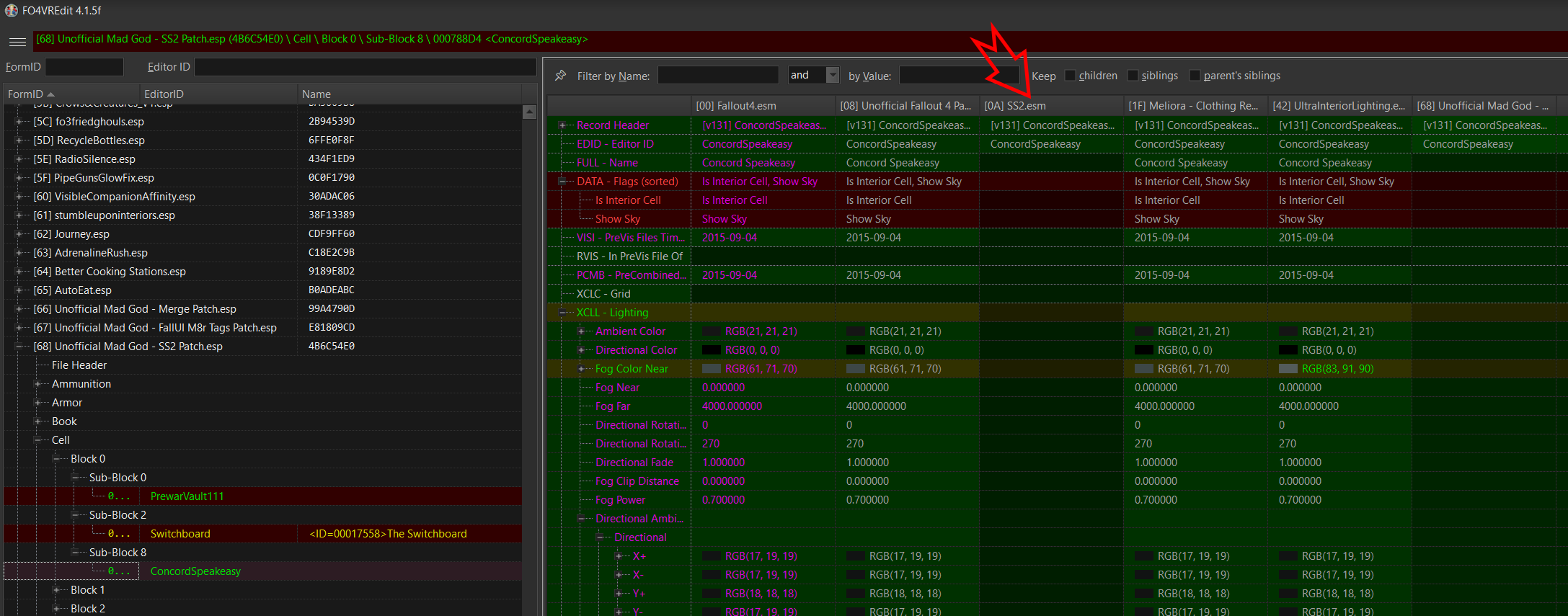
Mods such as Ultra Interior Lighting modify some of the same cells (locations) as SS2. It appears SS2 removed most of the data in these cells—though I’m not entirely sure of the effect; I’m sure it’s more important to have the data SS2 expects than to slightly reduce fog levels. Therefore, I preserved the SS2 changes, manually migrating some values from other mods when appropriate.
SS2 also adds a large number of items. Taking inspiration from the Sim Settlements 2 – FallUI Item Sorter Patch but being much more conservative, I believe I’ve covered most items without affecting quests. The SS2 Extended Chapter adds even more armor items that I didn’t address due to lack of enthusiasm; this may change in the future.
SS2 is huge, and I’m sure I haven’t covered everything, but it should be in a better state than before. Workarounds described here may still be required, but it should be possible to play it through. Contributions are welcome.
Bug Fixes
1. “Unofficial Fallout 4 Patch.esp” – NPC Interaction Delay Bug
This one is the craziest yet. About 50% of the time, when activating an NPC, it takes 3–4 seconds before they respond—and during that delay, the player is completely unable to move. I bisected the issue down to a single dialog line option in the “All Aboard” quest from the Nuka-World DLC! WTF?!?!
The record: [07] Unofficial Fallout 4 Patch.esp (B28C73A2) \ Quest \ 06000800 <DLC04MQ00> \ 060194CE \ 060194EE:

I tried overriding the record in my patch, but the only thing that actually fixed the issue was removing it from Unofficial Fallout 4 Patch.esp. So, unless someone has a better suggestion, I opted to duplicate the ESP file in my patch with a single change: removing that one record. Because my patch is later in load order than Unofficial Fallout 4 Patch, it overrides it, so the record is never loaded.
I have no idea why a single dialog line in a DLC quest would cause such a massive issue across every NPC interaction! My best guess is that it’s tied to a failure to initialize the dialog cache—but at this point, it’s truly dog science.

2. Exit Vault 111 Elevator Crash
There’s a crash when exiting Vault 111 via the elevator. Most players don’t encounter it because SKK Fast Start New Game skips to just after this point. However, I’m sentimental and prefer not to skip the intro. I traced the cause to Unofficial Fallout 4 Patch replacing the vaultExitElevatorSCRIPT.pex script. Reverting it to the original Fallout 4 VR version solved the issue.
Install Optional Recommended Mods
Note: None of these mods have plugin conflicts (right pane), so it’s safe to add them without worrying about plugin load order.
First, update FRIK to the latest version. I’m not just saying that because I’ve been working on it for the past six months—every update contains significant improvements. Note, there’s no need to wait until after leaving the vault to enable it; you can start the game with FRIK enabled.
Also update VR Address Library for F4SEVR. It’s updated frequently, and since it’s just a CSV file, there’s no risk in using the latest version.
Quality-of-life mods:
- Comfort Swim VR – A must for any water traversal in the game (and it’s by me!).
- Satellite World Map, Far Harbor, Nuka-World – A superior map set.
- Map Tweaks VR – Improves map usability.
- No Health and Crippled Pop-Ups – Removes distracting pop-ups in combat.
- No More Cash Register Sound When XP Gain – Self-explanatory.
- VR Handmade Reflex Sights – Fixes VR sight issues without VR Weapon Overhaul.
- Improved Reflex Sight Reticle Visibility – VR – Similar to above.
- Easy To See Glowing Stuff – Helps spot collectibles.
Graphics mods:
This is really personal; you can easily swap any of them around and change the order of the mod (left pane) to decide which one overrides which. As they are all textures, there is no risk in playing around with them—except that LOD is affected by mods changing ground and wall textures like “Natural Green” and “Vivid Fallout” (see the LOD section below for details).
- Natural Green – Grass Shrubs and Trees – Enhances visuals without losing atmosphere.
- Vivid Fallout – All in One – I prefer the rocks and ground to Luxor, so I put it right after Luxor HD Overhaul to have most of Luxor but override some with Vivid.
- Ammo Retexture – Better-looking ammo boxes.
- All Weapons HD (A.W.H.D.) – Improves missing vanilla weapons; place first in the “Vanilla Clothing & Weapons” section so other mods override it.
- VWR – Vanilla Weapons Redone – Explosives – Great throwable improvements; place first in the same section as above.
- Fallout 3 – NV Feral Ghouls Replacer – Optional to try.
- Crows And Creatures – Optional to try.
Note: I recommend reinstalling Retextured First Aid Kits, Detailed Urban Food, and HD Prewar Money to use the faded/weathered versions, which better match Fallout’s aesthetics.
V.A.T.S. Mods:
MGO modlist includes Bullet Time VATS VR, which breaks the VATS disabling used by FRIK when interacting with the wrist PipBoy. Install this fix: Bullet Time VATS VR – FRIK Pipboy Fix.
I recommend replacing it with these from the GingasVR modlist:
To disable the body-part targeting UI, add this to fallout4custom.ini:
[VATS]
fVATSPotentialTargetRaycastDist=0
Install Far Object LOD Mods
Once you experience the game with far-distance level of detail (LOD) objects, you can’t go back—especially when using graphics mods that change the environment, such as ground, roads, buildings, billboards, and more.
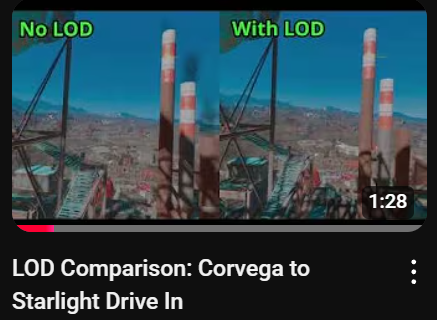
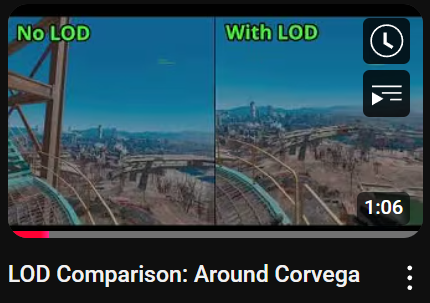
Without updated LODs, distant terrain and objects like roads and buildings end up with incorrect colors and textures. This not only looks bad from afar, but also creates a jarring “fade-in” effect when you move closer (see videos).
Example: View of Starlight from the Corvega plant. Note the roads, cinema screen, billboard, cars, trees, etc.

| Video: Corvega to Starlight Drive In | Video: Around Corvega |
|---|---|
 |  |
The main complexity with handling LOD is that, since they depend on landscape graphics mods, they need to be regenerated whenever those mods are changed. The process is a bit involved, takes quite a bit of time, and many players run into issues with it.
To make things easier, I followed the LOD Generation Instructions and created the Unofficial Mad God Overhaul LOD, which includes all the required steps and comes packaged in BA2 archives.
The main file assumes that Natural Green and Vivid Fallout are installed, but I also created an optional version that doesn’t require them, so no one is forced into using those mods. I didn’t include an option for any of the forest mods, as I didn’t want to get into that added complexity.
Important: You still need to install the Far Object LOD Improvement Project. When prompted in the installer, only check the “FOLIP – New LODs.esp”, “I will generate LOD“, “I will use TexGen“, and “I will use the FOLIP xEdit Patcher” options (I did all of those for you).
Note: If you experience distant objects failing to load—resulting in “holes” in the landscape—I’ve found that simply saving, exiting to the main menu, and reloading fixes it.
Load Order
Mods (left pane)
Graphics mods should be right after the Luxor HD mods; the rest are at the end of the mods load order.
... (DLCs, Luxor Overhaul)
FO4 HD Overhaul Vehicles SSR (after this one)
-> Vivid Fallout - AllinOne - 2k
-> Natural Green - Grass Shrubs and Trees
... (rest of the mods)
-> Unofficial Mad God Overhaul Patch
-> Far Object LOD Improvement Project
-> Unofficial Mad God Overhaul LOD
Plugins (right pane)
All the patches should be at the end of the plugins load order.
... (all the plugins)
Unofficial Mad God - Merge Patch.esp
Unofficial Mad God - FallUI M8r Tags Patch.esp
Unofficial Mad God - SS2 Patch.esp
FOLIP - New LODs.esp
Unofficial Mad God Overhaul LOD.esp
Unofficial Mad God Overhaul FOLIP - After Generation.esp
Final Words
I hope the “Mad God Overhaul” modlist author incorporates some of these fixes. Either way, I thought it would be useful to explain the issues, show how to resolve them, and give examples of effective mod conflict resolution.
This is the game I’m playing right now, and I’m having a lot of fun with it. My play style leans toward survival, so I added a few of the survival features from GingasVR’s modlist—tweaked and rebalanced to fit my own taste.
If that sounds interesting, let me know! I might write more about it and even publish a mod with my tweaks if there’s enough interest.
Modding… modding never changes.


[…] I’ve switched to using the Mad God Overhaul classic profile together with my Fixes and Customization Guide. It’s my personal recommendation for the most balanced Fallout 4 VR experience, and it provides […]